
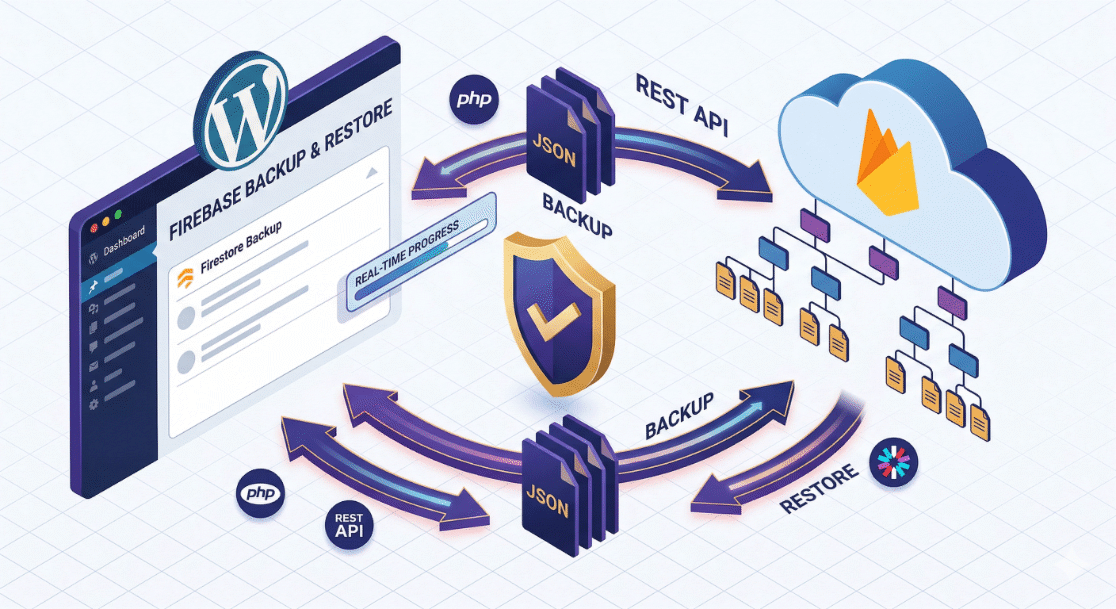
1. Plugin Overview
Firebase Firestore Backup is a purpose-built WordPress utility plugin designed to provide site administrators with a robust, reliable way to backup and restore Google Firebase Firestore databases directly from the WordPress admin dashboard.
Key Value Proposition
Managing NoSQL database backups, especially those with deeply nested subcollections like Firestore, can be a complex task that typically requires custom scripting or external CI/CD pipelines. This plugin brings enterprise-grade Firestore backup capabilities into the familiar WordPress ecosystem. It provides a simple GUI to export entire database trees to JSON files, and easily restore them with a single click, ensuring data safety and portability.
Core Capabilities
- Complete Data Export: Exports any selected Firestore collection, meticulously traversing and saving all nested subcollections and documents.
- Deep Restoration: Imports JSON backup files back into Firestore, perfectly reconstructing the original document structures and nested relationships.
- Real-Time Progress: Features a live, responsive progress bar during both export and import operations, ensuring the user is always informed of the task’s status.
- Backup Management: An integrated “Backups” tab allows administrators to view, download, or delete generated JSON backup files stored securely on the WordPress server.
- Secure Authentication: Utilizes Google Firebase Admin SDK Service Accounts for secure, server-to-server OAuth2 authentication.
Target Audience
This plugin is an indispensable tool for developers, SaaS founders, and WordPress administrators who utilize Firebase Firestore as their primary or secondary database and need a reliable, server-side backup solution without relying on expensive third-party backup services.
2. Architecture & Technology Stack
Firebase Firestore Backup is built with a clean, object-oriented PHP architecture that separates concerns between the WordPress admin interface, AJAX request handling, and external API communication.
Core Components
The plugin is structured around three main PHP classes:
Firebase_Backup_Admin:- Handles the registration of the WordPress admin menu pages (
wp-admin/admin.php?page=firebase-backup). - Registers WordPress options (
firebase_backup_settings) to securely store API keys and Service Account JSONs. - Enqueues the necessary CSS and JavaScript assets for the rich admin UI.
- Renders the tabbed interface (Settings, Collections, Backups).
- Handles the registration of the WordPress admin menu pages (
Firebase_Backup_Ajax:- Acts as the secure bridge between the frontend JavaScript and the backend API class.
- Validates WordPress nonces and user permissions (
manage_options). - Handles localized file system operations (creating the
/wp-content/uploads/firebase-backups/directory, saving JSON files, and deleting them). - Manages chunked processing for large imports using WordPress transients to store progress state (
firebase_backup_import_*).
Firebase_Backup_API:- The core engine for communicating with the Google Cloud Firestore REST API.
- Handles dynamic generation of OAuth2 JWT Bearer tokens using the provided Firebase Admin SDK private key.
- Executes recursive HTTP GET requests to traverse and export deep collection trees.
- Executes batched HTTP POST/PATCH requests to safely import and reconstruct deeply nested data structures.
Technology Stack
- Backend Logic: PHP 7.4+, Object-Oriented Design
- Frontend UI: HTML, CSS, Vanilla JavaScript, jQuery (for AJAX and DOM manipulation)
- WordPress Integration: Settings API, Transients API (for temporary state storage), File System API, AJAX API
- External Communication: Google Cloud Firestore REST API, OAuth 2.0 (JWT Bearer Tokens)
- Data Format: Local JSON files for permanent backup storage.


3. Core Features Deep Dive
This document details the advanced logic and features that make the Firebase Firestore Backup plugin a reliable tool for database management.
3.1. Recursive Data Extraction (Export)
Exporting a NoSQL database is challenging due to the lack of strict schema and the presence of nested subcollections. The plugin solves this via recursive API traversal:
- The
Firebase_Backup_APIclass reads a top-level collection and paginates through its documents (defaulting to 100 per page). - For every document discovered, it fires a
listCollectionIdsrequest to determine if the document contains any nested subcollections. - If subcollections exist, the function recursively calls itself, diving deeper into the tree until the entire branch is mapped.
- All mapped data, preserving the exact hierarchical structure, is localized and written to a highly-structured JSON file within the WordPress
/uploads/directory.
3.2. Structural Reconstruction (Import)
Restoring data is not just about writing documents; it requires preserving the specific document IDs and nested paths.
- The import system reads the selected JSON backup file and traverses the multidimensional array.
- It dynamically switches between
POST(for auto-generated IDs) andPATCH(for preserving specific document IDs) HTTP methods when communicating with the Firestore REST API. - It accurately reconstructs subcollections precisely where they belonged under their parent documents.
3.3. Large Dataset Handling & Rate Limiting
To prevent PHP execution timeouts and Firestore API rate limits during massive imports/exports:
- AJAX Batching: The JavaScript frontend communicates with the
Firebase_Backup_Ajaxclass to process batches of documents. - Transients: The plugin uses WordPress Transients to store progress states (success count, failure count, total documents) across multiple stateless AJAX requests.
- Micro-Delays: The API class introduces small microseconds delays (
usleep) during tight import loops to respect Google Cloud’s API quota limits and prevent429 Too Many Requestserrors.
3.4. Secure Backup Management
- Backups are saved directly to the WordPress server under
wp-content/uploads/firebase-backups/. - The integrated Backups tab parses this directory, allowing administrators to view file sizes, creation dates, download the JSON payload natively, or permanently delete the file off the server.
- All operations are strictly locked behind the WordPress
manage_optionscapability and secured via nonces.
4. Installation & Configuration Guide
Setting up Firebase Firestore Backup requires providing the correct Google Cloud authentication credentials to allow backend database access.
System Requirements
- WordPress 5.7 or higher
- PHP 7.4 or higher
- The PHP
opensslextension enabled (for JWT signature generation) - Ensure the
/wp-content/uploads/directory has write permissions.
4.1. Installation
- Upload the
firebase-firestore-backupdirectory to your/wp-content/plugins/folder either via FTP or the WordPress Plugin uploader. - Navigate to your WordPress Admin dashboard > Plugins.
- Locate Firebase Firestore Backup & Restore and click Activate.
4.2. Generating Firebase Credentials
Before configuring the plugin, you must obtain a Service Account JSON file from Firebase:
- Go to your Firebase Console.
- Select your project.
- Navigate to Project Settings (the gear icon) > Service Accounts.
- Click Generate new private key.
- Save the downloaded
.jsonfile to a secure location on your computer.
4.3. Configuration
- In your WordPress Admin sidebar, click on the Firebase Backup menu item.
- In the Settings tab, fill out the following details corresponding to your Firebase project:
- Project ID: (e.g.,
my-app-12345) - API Key: Your public Web API Key.
- Auth Domain: (e.g.,
my-app-12345.firebaseapp.com) - Service Account JSON: Open the
.jsonfile you downloaded in Step 2 with a text editor, copy the entire contents, and paste it into this textarea.
- Project ID: (e.g.,
- Click Save Changes.
Note: The plugin relies primarily on the Project ID and the Service Account JSON to generate secure OAuth2 tokens for API communication.
5. Usage Guide
Firebase Firestore Backup provides a simplified, non-technical interface within the WordPress dashboard for executing complex database operations.
5.1. Accessing the Dashboard
In your WordPress Admin panel, click on the Firebase Firestore Backup menu item.
The dashboard is divided into three tabs:
- Settings: Where you configure your Google Cloud/Firebase credentials.
- Collections: The primary interface for exporting and importing data.
- Backups: A file manager for your saved JSON database dumps.
5.2. Exporting Data (Backup)
- Navigate to the Collections tab.
- The plugin will automatically list all top-level collections in your Firestore database.
- Note: Due to Firestore’s hierarchical nature, any subcollections residing within these top-level collections will automatically be included in the export process.
- Click the Export button next to the collection you wish to backup.
- A real-time progress bar will appear, detailing the extraction of documents and recursive subcollections.
- Upon completion, you will be provided with a direct download link. The file is also permanently saved in the Backups tab.
5.3. Importing Data (Restore)
- Navigate to the Collections tab.
- Click the Import button next to the target collection you wish to restore into.
- A modal will appear prompting you to upload a valid
.jsonbackup file generated by this plugin. - Select your file and confirm.
- The plugin will begin chunking the import process. A progress bar will track the successful insertions.
- Warning: Importing data using the identical JSON file will overwrite existing documents with the same IDs.
5.4. Managing Backups
- Navigate to the Backups tab.
- Here you will see a chronological list of every
.jsonbackup saved to the server. - You can:
- Download: Save a copy to your local machine for cold storage.
- Delete: Permanently remove the backup from the server to free up disk space.